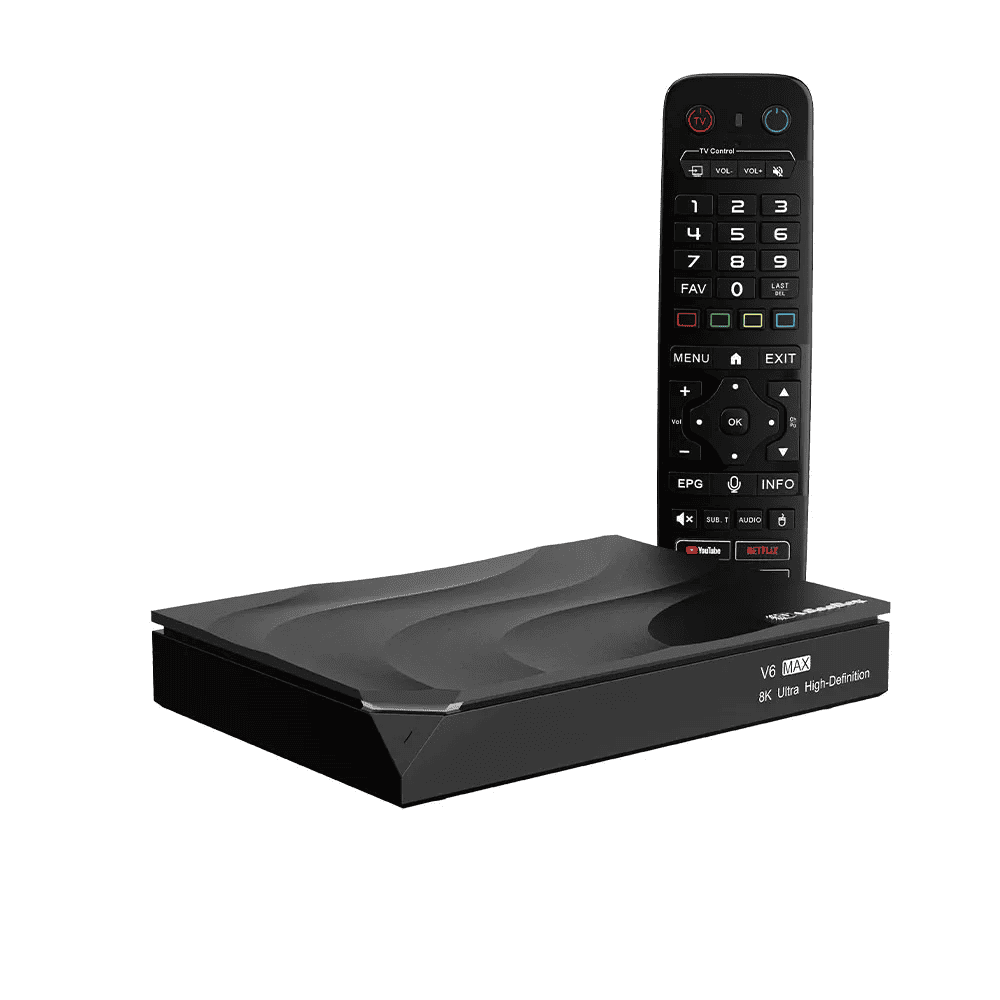
Buffering and freezing can interrupt your viewing experience, especially when watching high-resolution video.While many users assume the problem is caused by the device itself, buffering is often related to your internet connection, home network, or temporary system issues.
The good news is that most viewing interruptions can be resolved without replacing your device. This guide explains the most common causes of buffering on vSeeBox and provides practical solutions to help improve overall system performance.
Why Does vSeeBox Keep Buffering?
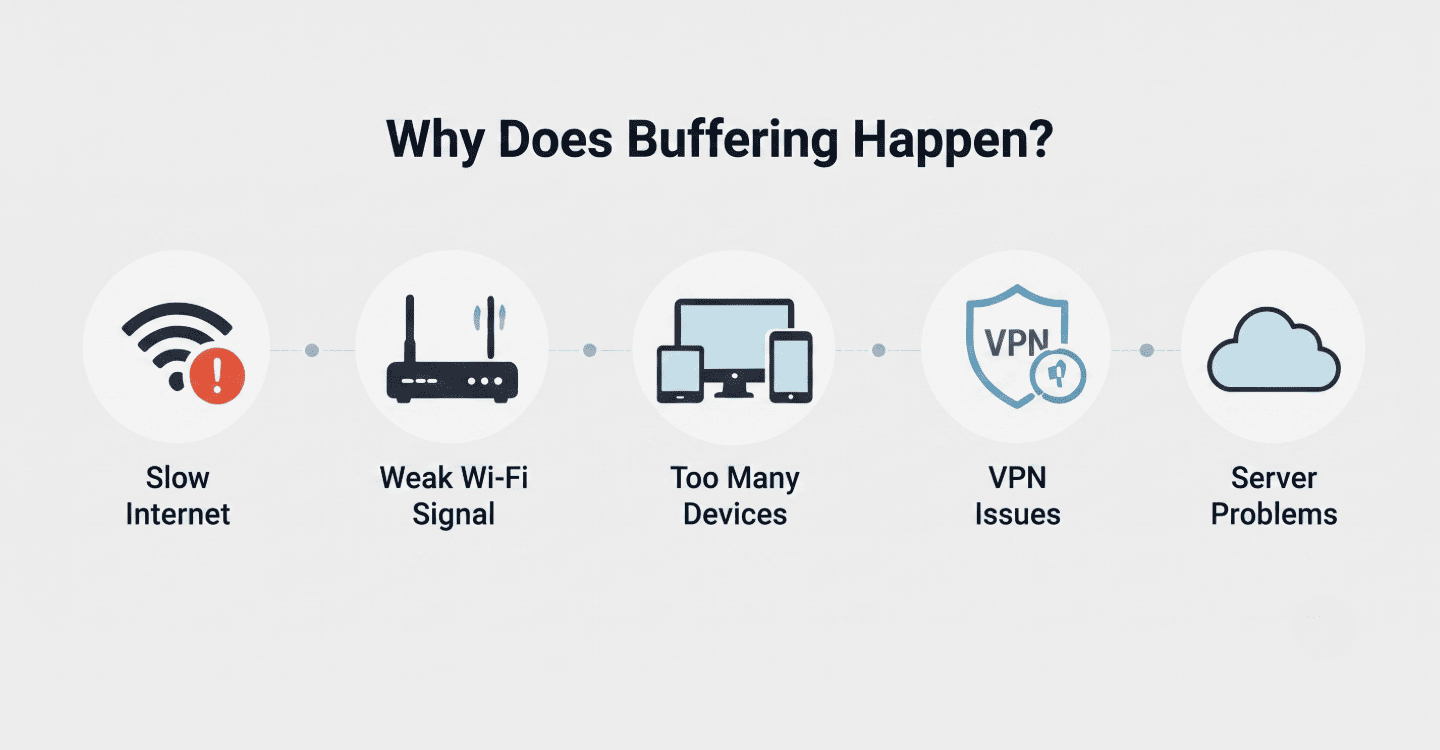
Buffering occurs when your device cannot download video data fast enough to maintain continuous continuous video viewing. Several factors can contribute to this issue, and identifying the cause is the first step toward fixing it.
Internet Connection Problems
A slow or unstable internet connection is the most common reason for buffering. Peak usage hours, network congestion, or an insufficient broadband plan can all affect video performance.
Weak Wi-Fi Signal
If your vSeeBox is located far from the router or surrounded by walls and electronic devices, the wireless signal may become weak or unstable.
Router Performance
Routers that have been running continuously for long periods may experience reduced performance due to memory usage or network congestion.
VPN Connection
A VPN can improve privacy, but some servers may increase latency or reduce connection speed, leading to viewing interruptions.
Temporary Software Issues
Cached data and background processes may occasionally affect system performance. Restarting the device or clearing temporary files often resolves these issues.
10 Proven Ways to Fix Buffering on vSeeBox
1. Restart Your vSeeBox
A simple restart clears temporary memory, closes unnecessary background tasks, and refreshes the operating system. This is often the fastest solution for minor performance issues.
2. Restart Your Modem and Router
Power off both devices for about 30 seconds before reconnecting them. Restart the modem first, wait until it is fully connected, and then power on the router. This helps refresh your network connection.
3. Switch to an Ethernet Connection
Whenever possible, connect your vSeeBox directly to your router using an Ethernet cable.
If your router is close to your TV, using an Ethernet cable is worth trying. In many cases, a wired connection delivers more consistent performance than Wi-Fi because it isn't affected by signal fluctuations or wireless interference. This often results in smoother HD and 4K video viewing with fewer interruptions, especially during busy hours when multiple devices are connected to the same network.
4. Improve Your Wi-Fi Signal
If using an Ethernet connection isn't an option, optimizing your Wi-Fi setup can make a noticeable difference. In many homes, simply moving the router closer to the TV or placing it in a more open location helps improve signal strength. Keeping the router away from thick walls, large metal objects, and unnecessary wireless interference can also create a more stable connection, especially when several devices are sharing the same network.
5. Test Your Internet Speed
Use a trusted speed test service to check whether your internet connection meets the recommended requirements.
| Video Resolution | Minimum Speed | Recommended Speed |
|---|---|---|
| SD (480p) | 3 Mbps | 5 Mbps |
| HD (720p) | 5 Mbps | 10 Mbps |
| Full HD (1080p) | 10 Mbps | 15 Mbps |
| 4K UHD | 20 Mbps | 25–35 Mbps |
| 8K UHD | 50 Mbps | 80–100 Mbps |
If several people are viewing at the same time, you may need a faster internet plan.
6. Check Your VPN Connection
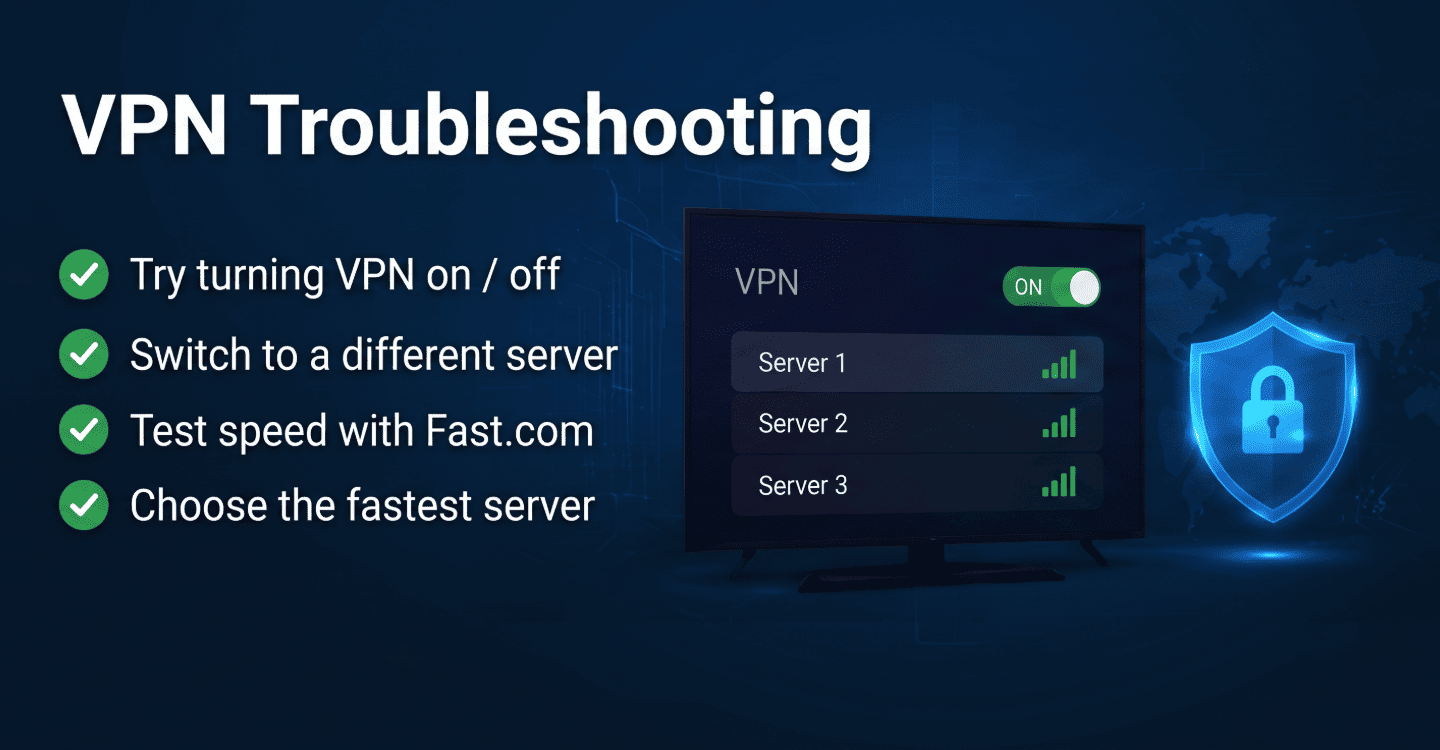
If you're using a VPN, it's worth checking whether it's affecting your video performance. We've found that some VPN servers can become congested during peak hours, which may increase latency or reduce download speeds. Temporarily disconnecting the VPN or switching to a different server can help you determine whether the VPN is contributing to buffering or viewing interruptions.
7. Reduce Network Traffic
If multiple devices are sharing the same internet connection, your available bandwidth may be divided between them. We've found that activities such as large file downloads, cloud backups, or video viewing on several devices at once can noticeably affect video quality. Reducing network activity while using your vSeeBox often helps maintain a more stable connection and minimizes buffering, especially during peak usage hours.
8. Lower the Video Quality
Higher video resolutions require more bandwidth.
If your internet speed is limited, lowering the video quality can provide a much smoother viewing experience with fewer interruptions.
9. Upgrade Your Router
If you've been using the same router for several years, it may no longer provide the performance needed for today's connected homes. As more devices compete for bandwidth, older hardware can become a bottleneck, leading to slower speeds and less stable network performance. Upgrading to a modern Wi-Fi 6 router can improve network efficiency, provide more consistent coverage, and help maintain more consistent video performance across multiple connected devices.
10. Contact Your Internet Service Provider
If you've worked through the troubleshooting steps above and buffering still occurs regularly, the issue may be outside your home network. At that point, it's worth contacting your internet service provider to check whether there are connection issues, line quality problems, or service interruptions affecting your area. They can also confirm whether your current internet plan provides enough bandwidth for your household's network usage requirements.
Recommended Internet Speed for Different Video Resolutions
Choosing the right internet speed helps ensure a better viewing experience.
| Video Resolution | Minimum Speed | Recommended Speed |
|---|---|---|
| SD | 3 Mbps | 5 Mbps |
| HD | 8 Mbps | 10 Mbps |
| Full HD | 10 Mbps | 15 Mbps |
| 4K | 20 Mbps | 25 Mbps+ |
Keep in mind that households with multiple connected devices will require additional bandwidth.
Additional Tips to Improve overall system performance
Beyond the troubleshooting steps above, a few simple habits can help keep your viewing experience stable over the long term. In our experience, regularly restarting your router, keeping both your vSeeBox and networking equipment up to date, and placing the router in a central, open location can all contribute to a more reliable connection. If your router supports both 2.4 GHz and 5 GHz bands, connecting to the 5 GHz network is often a better choice for high-resolution video, provided you're within a good signal range. It's also worth avoiding large downloads or other bandwidth-intensive activities while watching content, as these can reduce the available bandwidth and lead to unnecessary buffering.
Frequently Asked Questions
Why does my vSeeBox keep buffering?
Most buffering problems are caused by internet speed, Wi-Fi interference, network congestion, or router performance rather than the device itself.
Does a VPN cause buffering?
It can. Some VPN servers increase latency or reduce bandwidth. Testing video performance with and without a VPN can help identify the cause.
Is Ethernet better than Wi-Fi?
Yes. Ethernet provides a more stable connection, lower latency, and fewer interruptions, making it the preferred option for HD and 4K video viewing.
What internet speed is recommended?
For Full HD video, at least 15 Mbps is recommended. For 4K video, 25 Mbps or higher generally provides the best experience.
How can I improve Wi-Fi performance?
Move the router closer to your device, reduce interference from other electronics, disconnect unused devices, and consider upgrading to a Wi-Fi 6 router.
Final Thoughts
Buffering issues are usually related to your internet connection or home network rather than your device. By following the troubleshooting steps in this guide—such as restarting your equipment, improving your Wi-Fi signal, using an Ethernet connection, and checking your internet speed—you can resolve most viewing interruptions and enjoy a smoother viewing experience.
If buffering continues after completing these steps, contacting your internet service provider is the next best step to identify potential network issues.


.jpg?w=2048&h=2048)

-0.jpg?w=2048&h=2048)