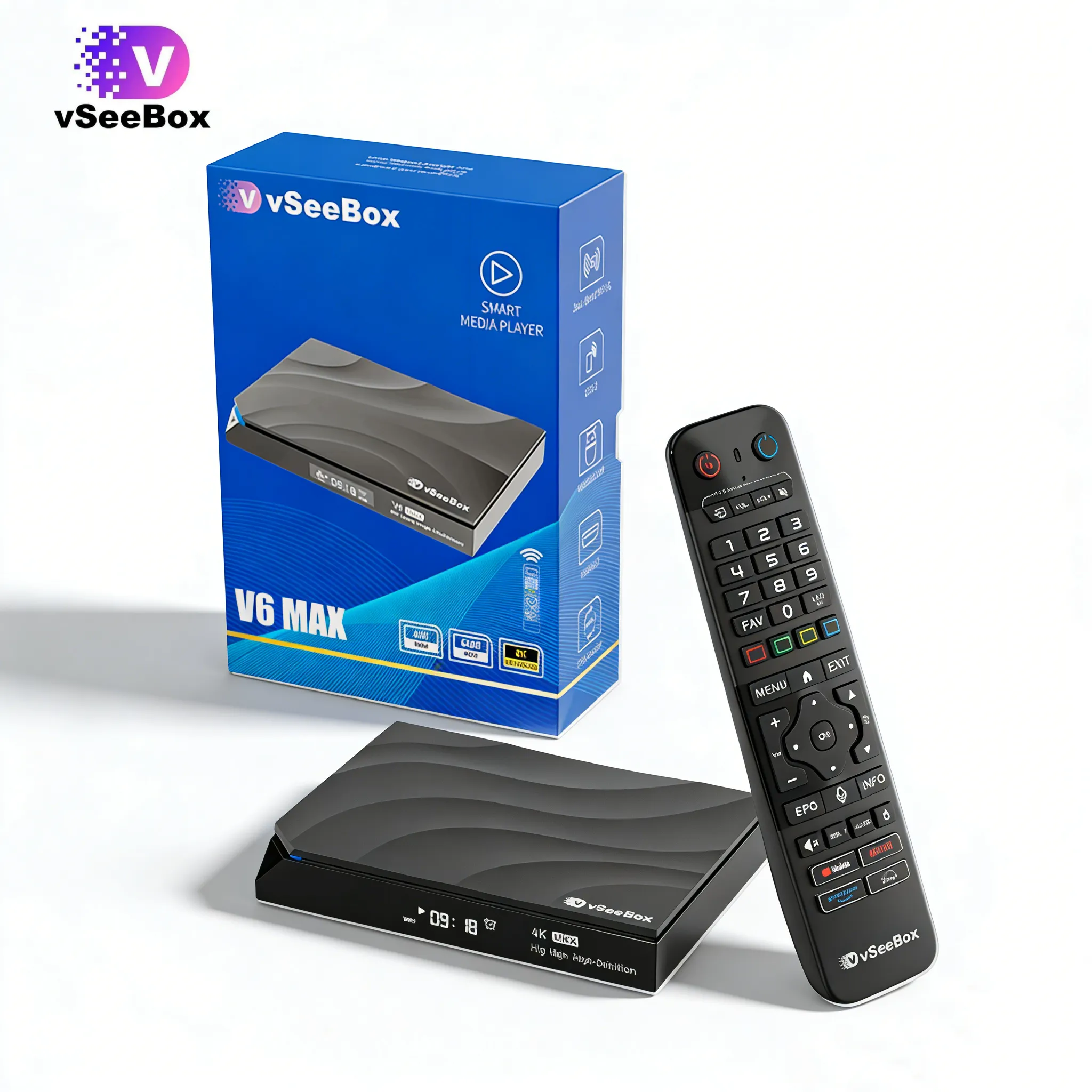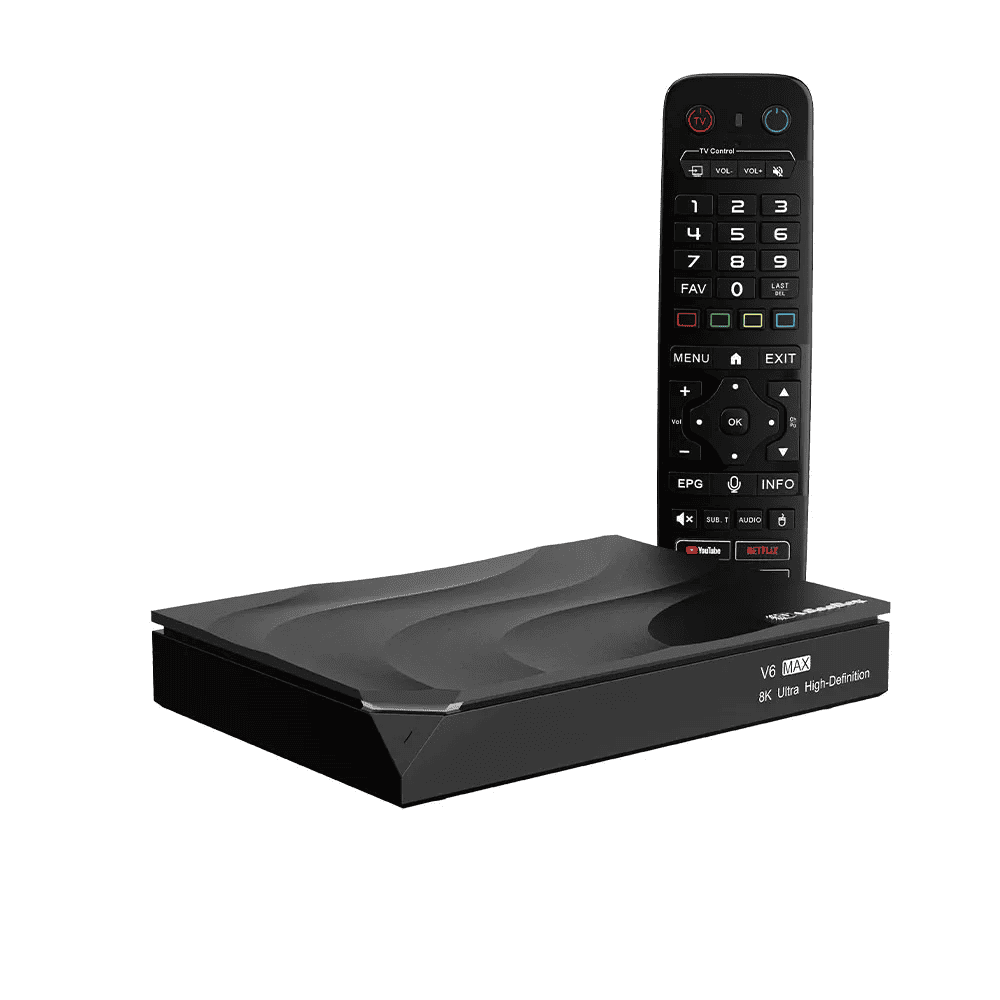
A stable network connection helps ensure a smooth experience when using your vSeeBox device. In some cases, connection problems may occur due to incorrect network settings, weak wireless signals, router configuration, or cable connection issues.
This guide explains how to troubleshoot common vSeeBox network connection problems, including WiFi connection issues and Ethernet connection issues, with simple steps to help identify and resolve common network-related situations.
Common Reasons for vSeeBox Network Connection Problems
Network issues can happen for different reasons. Before making changes, check some common causes:
- Incorrect wireless password
- Weak WiFi signal strength
- Incorrect IP configuration
- Router or modem connection problems
- Loose Ethernet cable connection
- Temporary network interruptions
Checking these factors first can help you quickly locate the source of the problem.
Troubleshooting vSeeBox WiFi Connection Issues
If your vSeeBox connects through WiFi, follow the steps below to check your wireless connection.
Step 1: Check WiFi Connection Status
Open:
Settings → Network
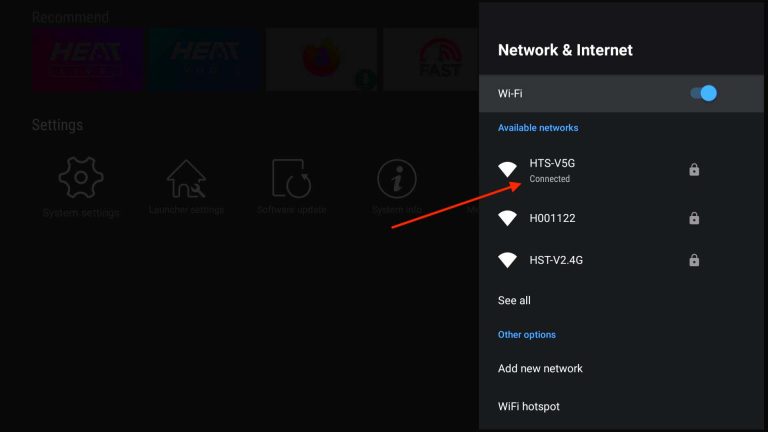
Find your WiFi network and check the connection status.
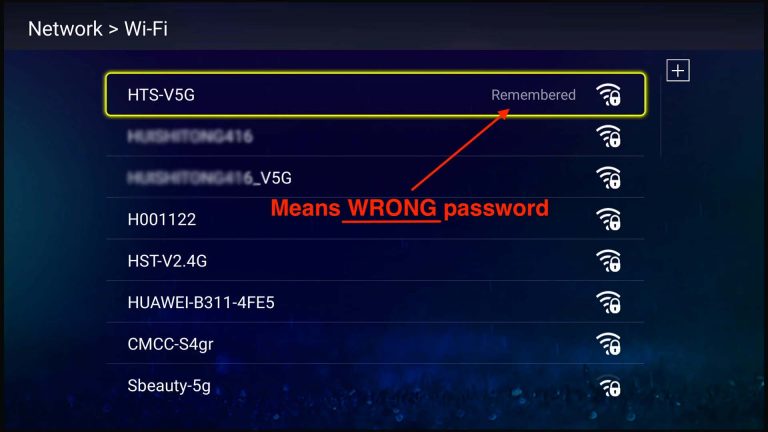
If the status shows Connected, your vSeeBox has successfully connected to the wireless network.
If the status shows Remembered, the saved WiFi password may not be correct.
To reconnect:
- Select your WiFi network.
- Choose Forget Network.
- Enter the correct WiFi password.
- Connect again
Step 2: Check WiFi Signal Strength
A weak wireless signal may affect connection stability.
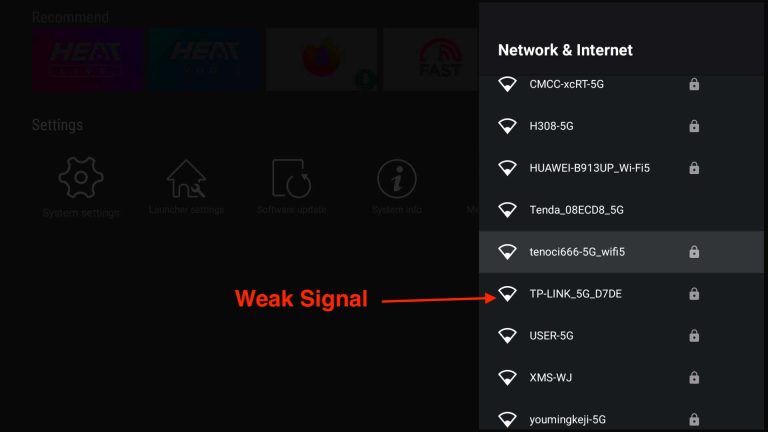
Check the WiFi indicator in the network settings:
- A fully displayed WiFi icon usually indicates a stronger signal.
- A partially displayed WiFi icon may indicate a weaker signal.
To improve wireless connection quality:
- Move your vSeeBox closer to your router.
- Avoid placing the device behind thick walls or large objects.
- Keep the router in an open area
Walls and physical obstacles may reduce wireless signal strength.
Step 3: Confirm IP Settings
Check your network configuration:
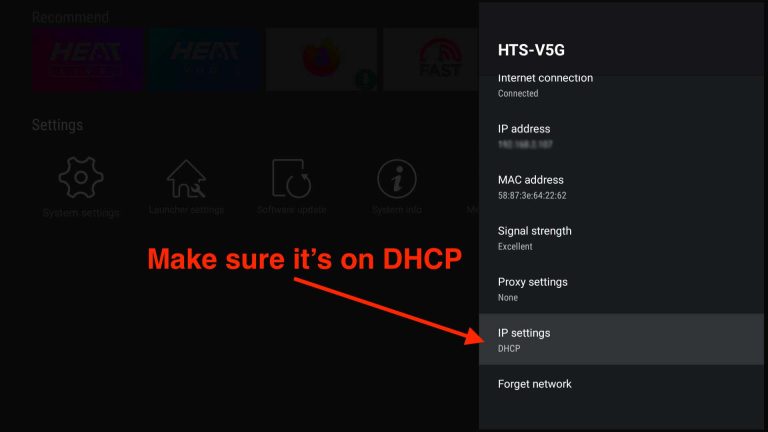
Settings → Network → IP Settings
Make sure the IP setting is selected as:
DHCP
DHCP allows your router to automatically assign network information to your vSeeBox device.
Step 4: Test Your Network Connection
After checking the settings:
- Open a supported online service to confirm whether the connection works.
- Use the network testing feature on your device to check connection performance.
A stable internet connection is recommended for a smoother user experience.
What to Do If vSeeBox WiFi Still Cannot Connect
If your WiFi connection problem continues, try the following solutions:
Restart Your Router and Modem
Power off your router and modem, wait briefly, then restart them.
After the network becomes available again, reconnect your vSeeBox.
Try an Ethernet Connection
A wired connection can provide another way to test your network environment.
Connect your vSeeBox to your router using an Ethernet cable and check whether the connection improves.
Test Another Network
Try connecting your vSeeBox to another available network, such as:
- Another WiFi network
- A mobile hotspot
- A different router connection
This helps determine whether the issue comes from the device or the current network environment.
Troubleshooting vSeeBox Ethernet Connection Issues
If you use an Ethernet cable connection, follow these steps.
Step 1: Check Ethernet Connection Status
Open:
Settings → Network
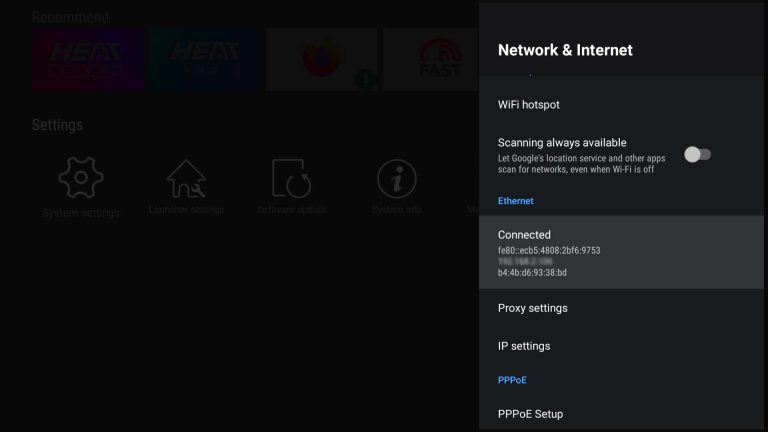
Confirm that Ethernet is detected correctly.
A successful Ethernet connection should display network information such as:
- IP address
- Network details
- Device MAC information
Step 2: Confirm Ethernet IP Settings
Check:
Settings → Network → IP Settings
Make sure the setting is:
DHCP
This allows your router to automatically assign the required network information.
Step 3: Disable WiFi When Using Ethernet
If your vSeeBox was previously connected through WiFi:
- Turn off WiFi connection.
- Use Ethernet as the primary network connection.
This can help avoid connection conflicts between different network methods.
Step 4: Test the Network Connection
After connecting Ethernet:
- Check whether the network status shows connected.
- Test your internet connection.
- Confirm whether online functions work normally.
What to Do If Ethernet Connection Does Not Work
If your Ethernet connection is still unavailable, check the following:
Check the Ethernet Cable
Make sure:
- The cable is firmly connected to your vSeeBox.
- The other end is properly connected to your router.
- The cable is not damaged.
Try a Different Router Port
If your router has multiple Ethernet ports, try another available port to check whether the issue is related to the current port.
Test WiFi Connection
Switch back to WiFi and check whether your vSeeBox can connect normally.
If WiFi works but Ethernet does not, the issue may be related to the cable, router port, or network configuration.
Tips for Maintaining a Stable vSeeBox Network Connection
To improve your network experience, consider the following:
- Place your router in an open location.
- Keep your network equipment working properly.
- Use a reliable Ethernet cable for wired connections.
- Avoid placing your device too far from your wireless router.
- Restart your router occasionally if connection issues occur.
Conclusion
Most vSeeBox network connection issues can be solved by checking wireless settings, confirming DHCP configuration, improving signal strength, or testing different connection methods.
Whether you use WiFi or Ethernet, these troubleshooting steps can help you identify common network problems and restore a stable connection.
If the issue continues after completing these steps, contact vSeeBox customer support for additional assistance.



.jpg?w=2048&h=2048)
-0.jpg?w=2048&h=2048)